Pruneapple User Help Guide
How to use the app, manage your supporter status, and resolve common macOS issues.
Welcome to the Pruneapple help guide. This document explains how to use the app, manage your supporter status, and resolve common macOS issues.
How to Use Pruneapple
Pruneapple is a disk space visualizer designed to help you quickly identify what folders and files are consuming the most storage on your Mac.
1. Scanning a Directory
- Launch Pruneapple.
- Click the Select Folder button in the sidebar or menu.
- Choose the folder, drive, or volume you want to scan (e.g., your User Home folder).
- Wait for the scan to complete. Progress is shown in the sidebar.
2. Reading the Disk Map
Pruneapple renders your disk usage as a multi-layered concentric sunburst chart:
- The Center Core: Represents the root folder you selected to scan.
- Inner Rings: Represent top-level directories within that folder (e.g.,
Documents,Library). - Outer Wedges: Represent subdirectories and nested folders. The wider a wedge is, the more storage space it consumes.
- Hovering: Hover your mouse over any segment of the chart to see the folder name, exact size, and full directory path.
3. Taking Action
- Locate in Finder: Click on any segment of the chart to immediately open that folder in macOS Finder so you can delete or archive large files.
- Smart Prune: Navigate to the "Smart Prune" tab to let Pruneapple highlight safe-to-delete caches, log files, and duplicate directories.
Supporter Status & Donations
Pruneapple is open-source and free to build from source. If you would like to support active development, you can make a donation.
How to Activate Supporter Status
When you donate, you receive a custom badge and supporter status in the app. Here is how to activate it:
- Click the Support tab in Pruneapple's Settings window.
- Select your desired donation level or enter a custom amount to open the secure Stripe checkout page in your web browser.
- Complete the checkout process.
- On the confirmation page (or in your email receipt), find the transaction Session ID. It starts with
cs_live_...(orcs_test_...if in developer mode). - Copy that entire Session ID string.
- Return to Pruneapple, paste it into the Redeem Code field in the Support tab, and click Activate.
Troubleshooting & FAQs
"Pruneapple cannot be opened because the developer cannot be verified"
Because Pruneapple is distributed outside the Mac App Store, macOS Sequoia and later require a manual authorization in System Settings on first launch:
- Attempt to open Pruneapple.app normally. It will display a block warning dialog. Click OK.
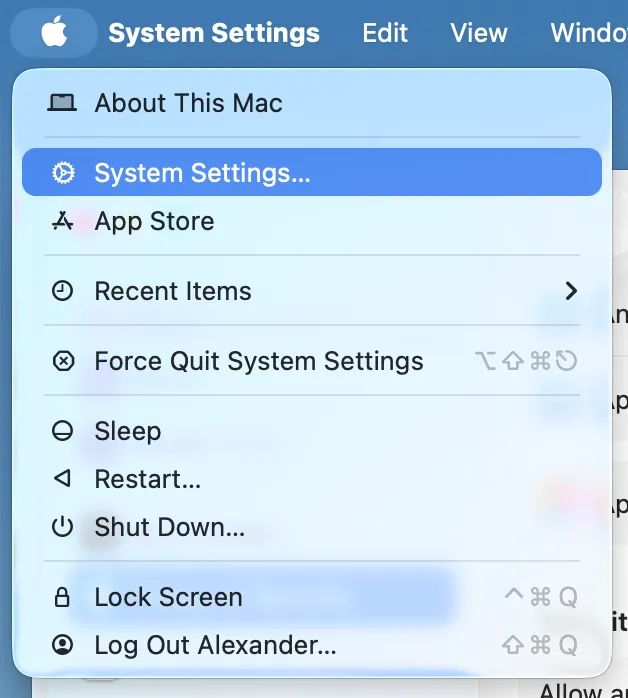
- Open System Settings from the Apple menu.
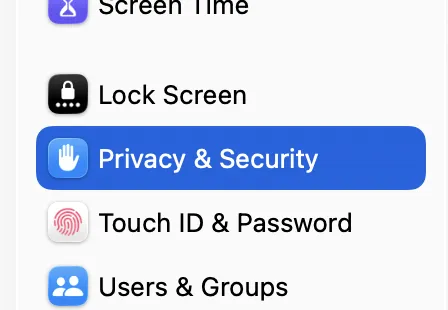
- Navigate to the Privacy & Security tab in the sidebar.
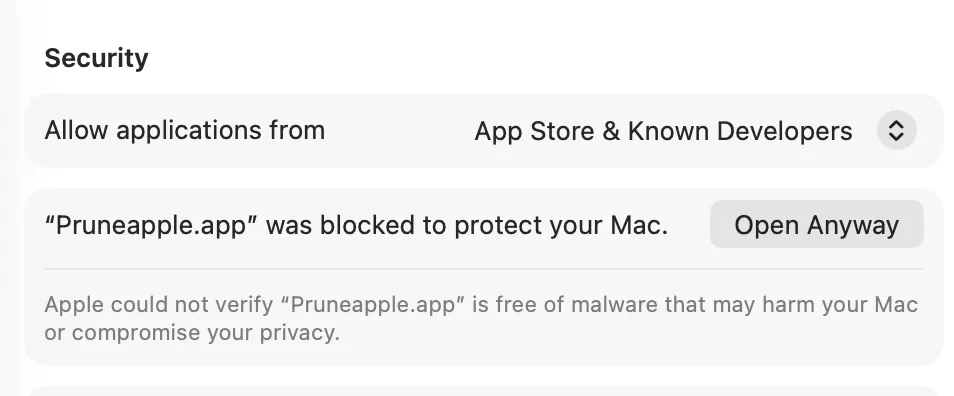
- Scroll down to the Security section. You will see a notice stating that "Pruneapple.app" was blocked....
- Click the Open Anyway button.
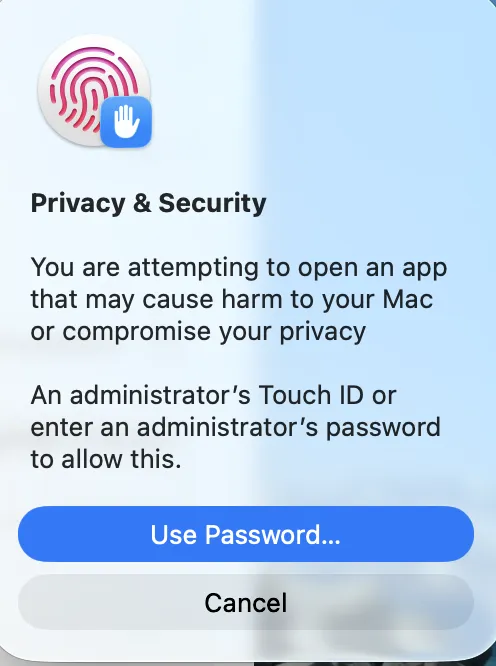
- Authenticate with your Touch ID or administrator password to confirm.
Note for macOS Sonoma and earlier: You can alternatively right-click (or Control-click) Pruneapple.app in Finder, select Open, and confirm in the dialog box.
Open System Settings
Privacy & Security
Click Open Anyway
Enter Password / Touch ID
Why is Pruneapple asking for permissions?
To calculate directory sizes accurately, Pruneapple requires read-only access to scan your files.
- It may request access to your Desktop, Documents, or Downloads folders depending on what directory you choose to scan.
- If you deny these permissions, Pruneapple will not be able to measure folders in those locations and will report them as empty. You can re-enable permissions in System Settings > Privacy & Security > Files and Folders.
Why isn't Pruneapple on the Mac App Store?
Distribution outside the Mac App Store is necessary to allow Pruneapple to perform its core functions. The App Store enforces stringent App Sandboxing rules that prevent applications from scanning files or reading nested directory structures outside of a highly restricted, isolated container.
Distributing the app directly lets us bypass these sandbox limitations, enabling the advanced filesystem APIs needed to map your disk space accurately and run on-device Apple Intelligence heuristics locally, all while keeping your data 100% private and offline.
Does Pruneapple collect or share my data?
No. Pruneapple is designed with privacy as a core principle. It operates entirely offline and contains no telemetry, tracking, or network calls. All file scan calculations are done locally on your Mac, meaning none of your data ever leaves your computer.
How you can verify this:
- Audit the Source: Pruneapple is open source. You can audit the entire codebase on GitHub or build the app yourself.
- Check Activity Monitor: Open macOS Activity Monitor, switch to the Network tab, and search for Pruneapple. You will see both sent and received bytes remain strictly at zero.
- Use a Firewall: Network monitoring tools like Little Snitch or LuLu will confirm that Pruneapple never requests any outbound connections.